


Blog
Gmail Extension Case
Study: Auto-Accepting Work Orders and Booking Jobs in Seconds
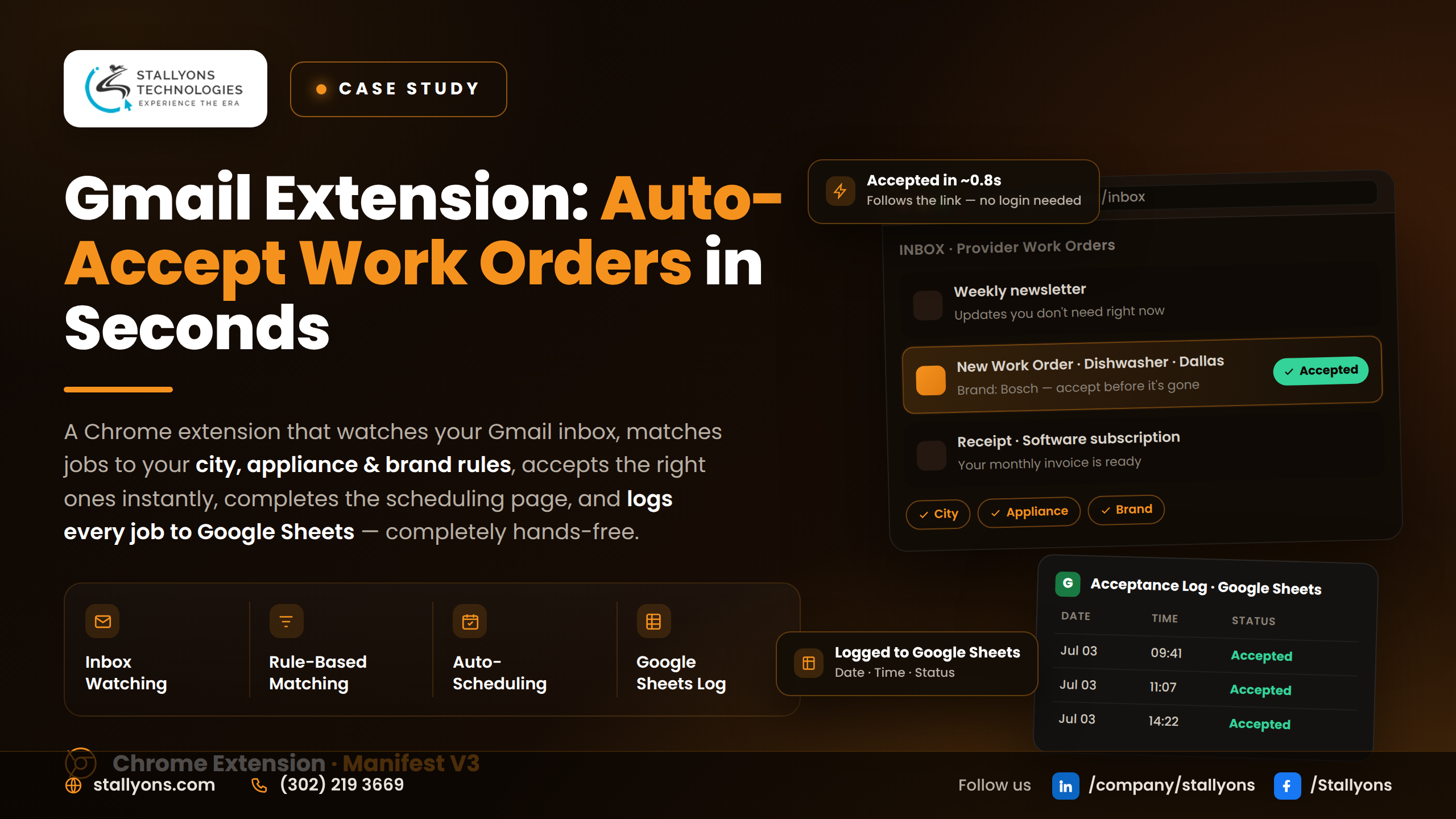
For a field service technician, every work order is a race. Jobs arrive by email and are handed out first-come, first-served. Accept fast enough and the job is yours; hesitate for a couple of minutes and it’s gone to someone else. Sitting and staring at an inbox all day isn’t a business model, and even when you’re watching, you still have to accept and pick a date and time before the window closes.
We solved this the practical way: with a lightweight Gmail Chrome extension that removes the human delay entirely. It watches the inbox, checks each job against the technician’s own rules, follows the acceptance link the instant a match appears, completes the scheduling page, and logs every acceptance to a Google Sheet. This is exactly the kind of automation a specialist Chrome extension development partner is built to deliver: small, reliable, and low-maintenance.
In one line: a Chrome extension that auto-accepts matching work-order emails the moment they arrive, completes the scheduling page, and logs every acceptance to Google Sheets, so the right jobs are won without manual effort.
The Problem: Manual Acceptance Loses Jobs (and Revenue)
The old process was entirely manual, and every weakness in it translated directly into lost income:
- Speed decides who gets the job. Work orders are accepted on a first-come basis. A few minutes of delay can mean the job is simply gone.
- Watching the inbox all day isn’t realistic. Jobs land at any hour. Nobody can sit ready to click within seconds, all day, every day.
- Not every job is the right one. There are appliances and brands the technician doesn’t service, and jobs outside their city. Accepting the wrong ones wastes time and money.
- Accepting is only half the task. After accepting, a scheduling page opens where a date and time must be chosen, a second manual step that also has to happen fast.
- Manual work leaves no clean record. Doing it by hand means no easy log of what was accepted and when, which makes the business hard to track.
Put simply, every missed or mis-handled work order is revenue walking out the door. The goal of the build was to stop that leak.
The Solution: A Gmail Extension That Watches, Matches, Accepts, Schedules and Logs
The extension turns the entire manual routine into an automatic one that runs quietly in the background on a laptop kept open for the purpose. Because the work orders always come from the same provider in the same format, they’re easy to recognise and read reliably.
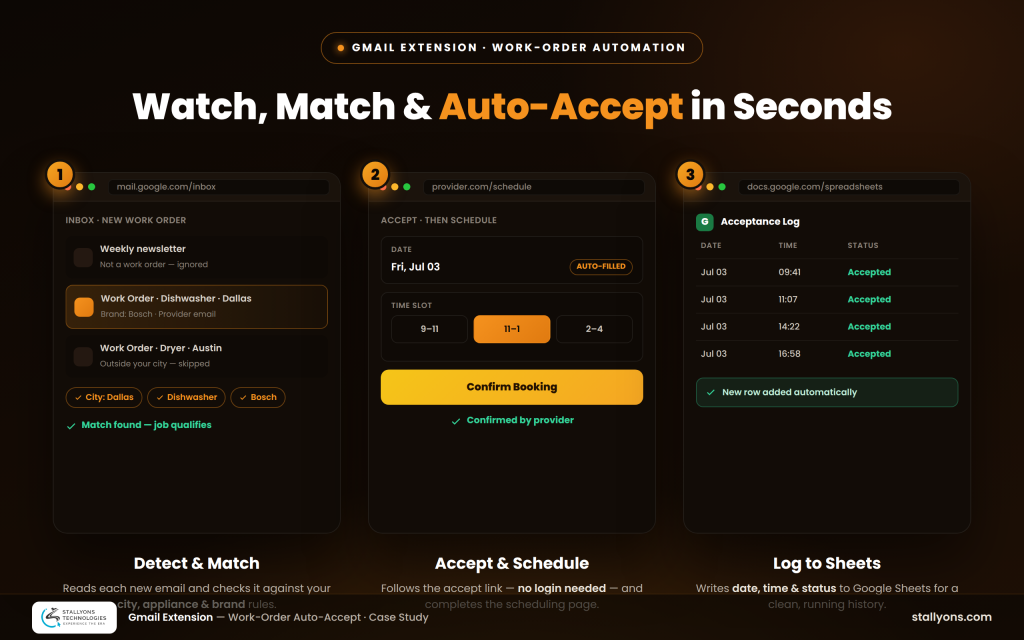
From Email to Booked Job in Six Steps
- Watches the Gmail inbox for new work-order emails from the provider.
- Reads the job details from a matching email.
- Checks the job against the user’s city, appliance, and brand rules.
- Accepts the job by following the acceptance link the moment it matches.
- Schedules the job by completing the page that opens, choosing a date and time.
- Logs the acceptance to a Google Sheet with the date, time, and status.
This end-to-end flow is what separates a useful tool from a clever demo. Rules-based Chrome extension automation only pays off when it finishes the whole task, not just the click.
The Matching Rules: Accept Only the Right Jobs
The rules are the brain of the extension. The technician sets simple parameters (one city to start, a couple of appliance types, and the brands they work on under each), and a job only goes forward if it fits. A dryer in a city they don’t cover, or a brand they don’t service, is quietly skipped.
| Rule type | How it’s set |
|---|---|
| City | The area the technician covers (start with one). |
| Appliance types | A small set of appliances they actually service. |
| Brands | The brands they handle under each appliance type. |
| Senders / subjects | The provider’s address or subject pattern that triggers the check. |
Because the incoming emails are consistent, the city, appliance, and brand are reliable to read, so the filtering is trustworthy. The technician starts simple and widens or narrows the rules whenever they like, so the tool grows with the business.
Accepting and Scheduling: Automating Both Manual Steps
Each work-order email carries a unique acceptance link. When a job matches, the extension follows that link, which confirms the job with the provider. Importantly, no login to the provider’s site is required, because the link itself carries everything needed.
Accepting then opens a scheduling page where a date and time must be chosen. The extension completes this page automatically, finishing the booking without the user stepping in. The provider sends back its usual confirmation, exactly as it would in the manual process, so the technician knows the job is fully booked. Automating this second step is what makes the tool truly hands-off.
Logging and Self-Serve Setup
Every acceptance writes a row to a Google Sheet capturing the date, time, and status, giving the technician a clean, running history they can open any time without digging through emails.
Just as important, the extension ships with step-by-step setup instructions, so the user can install it, set their rules, and start it running themselves, then tweak it later (change the city, add a brand, adjust which senders trigger the check). The technician bought a dedicated laptop to keep open for it, and the tool is built to sit there and work quietly in the background.
The Technical Approach
A Chrome extension lives entirely in the browser, so this is front-end engineering at heart, the kind of work our front-end developers do day to day. Every choice keeps the automation lightweight and easy for the technician to run and adjust themselves.
Under the hood the tool is deliberately plain. It is a Manifest V3 Chrome extension, so it runs right inside the browser where Gmail and the provider’s pages already live. It watches the inbox for new work orders, checks each one against the keyword rules for city, appliance, and brand, and when a job matches it follows the email’s own accept link to confirm it, with no provider login. It then fills in the date and time on the scheduling page that opens, and writes the date, time, and status of every acceptance to a Google Sheet. All of it sits on a dedicated laptop kept open so the extension can keep working in the background.
The Hard Parts We Solved
- Acting fast enough to win jobs. By watching the inbox and following the acceptance link automatically, the extension acts in seconds, far faster than a person could.
- Accepting only the right jobs. Speed is worthless if it grabs the wrong work. The keyword rules for city, appliance, and brand keep the automation trustworthy.
- Finishing the scheduling step. Automating the page that opens after acceptance is what makes the booking genuinely complete.
- Keeping it simple to run and change. Plain Google Sheets logging and step-by-step setup keep the technician in full control of their own tool.
One honest constraint comes with a tool this lightweight: it leans on the provider’s emails and scheduling page staying broadly the same. Because every work order arrives from one sender in one predictable format, the rules can read it reliably, but if that provider ever reworks its email layout or its booking page, the matching and form-filling have to be updated to match. That is the trade-off for something this cheap to run, and it is why the rules, senders, and fields are all left in the technician’s hands to adjust rather than buried in code.
The Payoff
The finished product is a small, reliable Chrome extension that takes a stressful, time-sensitive routine and makes it simply happen. It watches the inbox, spots matching work orders, accepts them with no login needed, completes the scheduling page, and logs every acceptance to Google Sheets. The technician wins the right jobs, faster and more reliably than by hand, while keeping full control over which jobs the tool accepts.
The business impact is direct: less time lost to inbox-watching, fewer missed jobs, no wrong bookings, and a clean record of everything won.
Could a Custom Chrome Extension Automate Your Workflow?
If a repetitive, time-sensitive task in your business runs through Gmail, a browser tab, or a SaaS dashboard, it can very likely be automated the same way: email triage, auto-responses, data capture into Google Sheets, or workflow automation software that ties together the tools you already use. It is the same approach behind other builds, like our Agent CRM Chrome extension.
If you want to turn a manual routine into something that just runs, our custom Chrome extension development team can help. The best first step is a short discovery call to work out what is worth automating and what is not.
Frequently Asked Questions
Can you build a Chrome extension that reads my Gmail automatically?
Yes. The extension runs in the browser on your own account and acts only on the emails and rules you define. In this case, that means work-order emails from a specific provider.
Does auto-accepting require logging into the provider’s site?
No. Each work-order email contains a unique acceptance link, and following that link confirms the job, so no separate login is needed.
Can it log activity to Google Sheets or another system?
Yes. Here, every acceptance is written to a Google Sheet with the date, time, and status. The same approach can log to a spreadsheet, a database, or another tool.
How do the matching rules work?
You set simple keyword rules: city, appliance type, brand, and the sender or subject that triggers the check. Only jobs that match your rules are accepted; everything else is ignored.
How long does a custom automation extension take to build?
A focused, single-purpose extension like this is a small, fast project. Scope depends on the pages being automated and the number of rules, but lightweight tools like this ship quickly.